

Take a course and get your certificate
Work through the lessons, pass the quiz, then download your certificate.
-
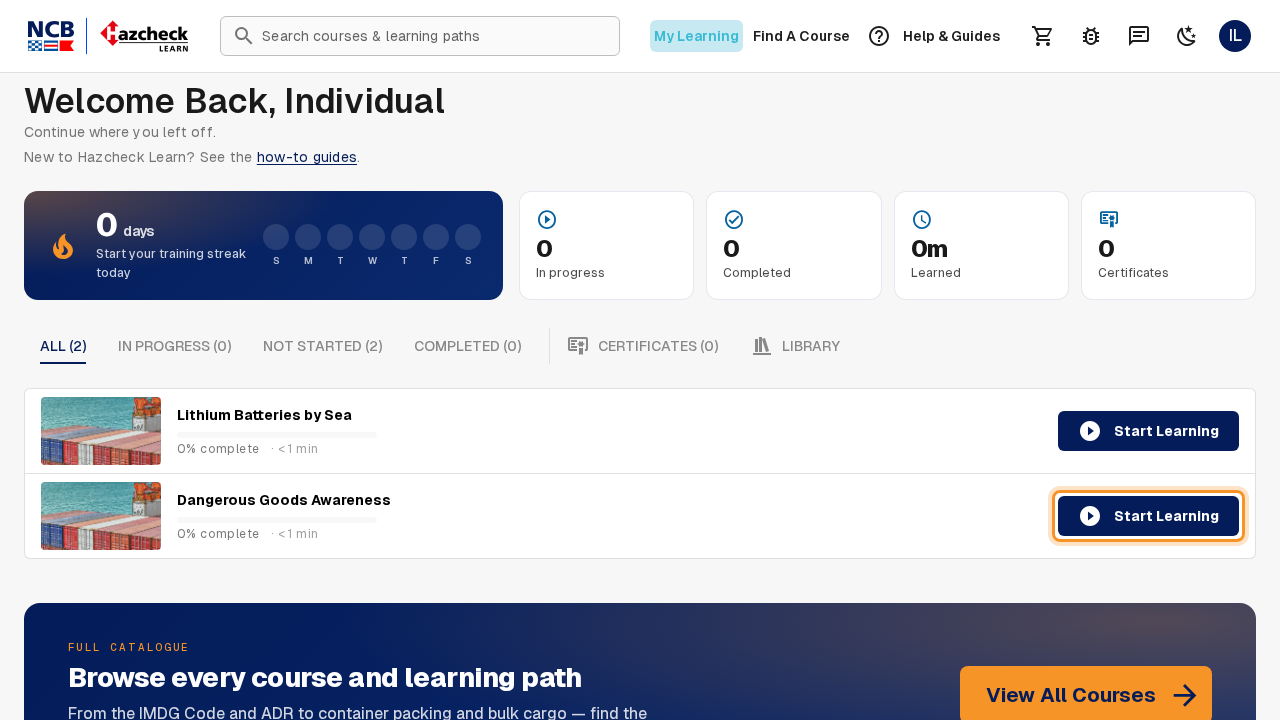
Step 1: Open My Learning
My Learning opens on every course you can take. Select Start learning beside the course.
-
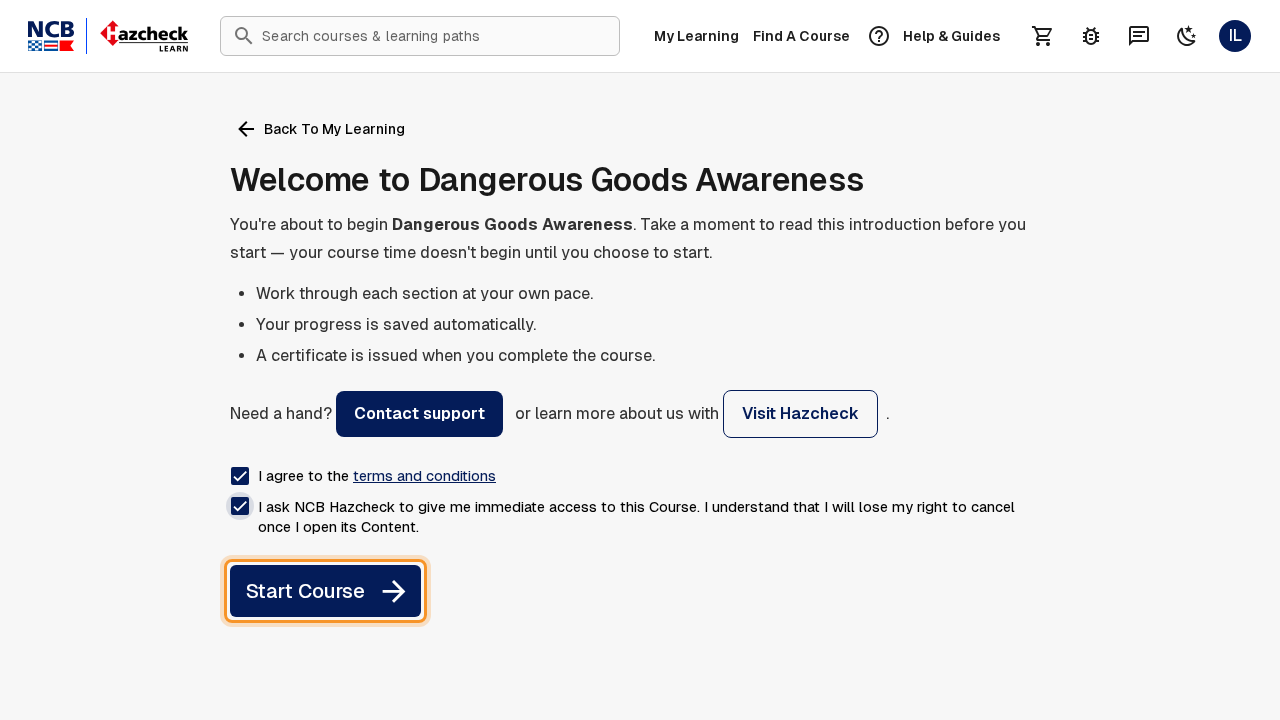
Step 2: Read the introduction
The introduction explains how the course works. When you're ready, tick the box to ask for immediate access (you can't cancel for a refund once you open the course), then select Start course.
-
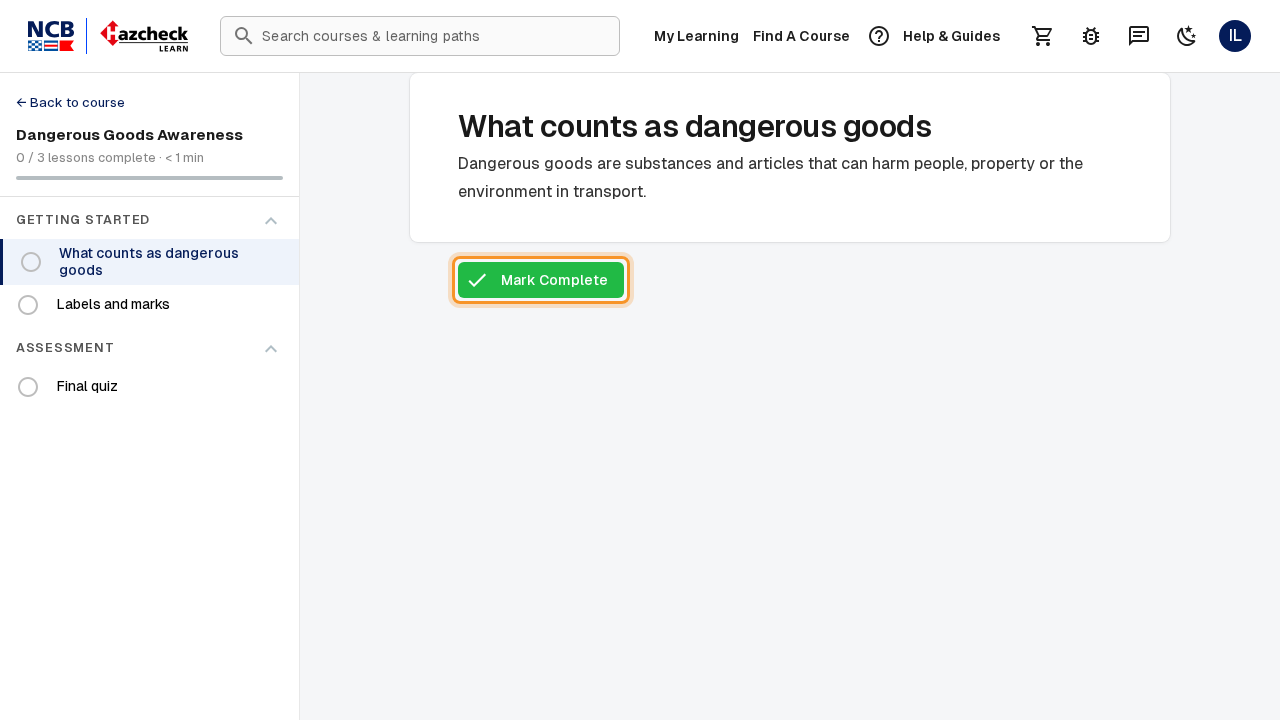
Step 3: Work through each lesson
The lessons are listed on the left. Read the lesson, then select Mark Complete.
-
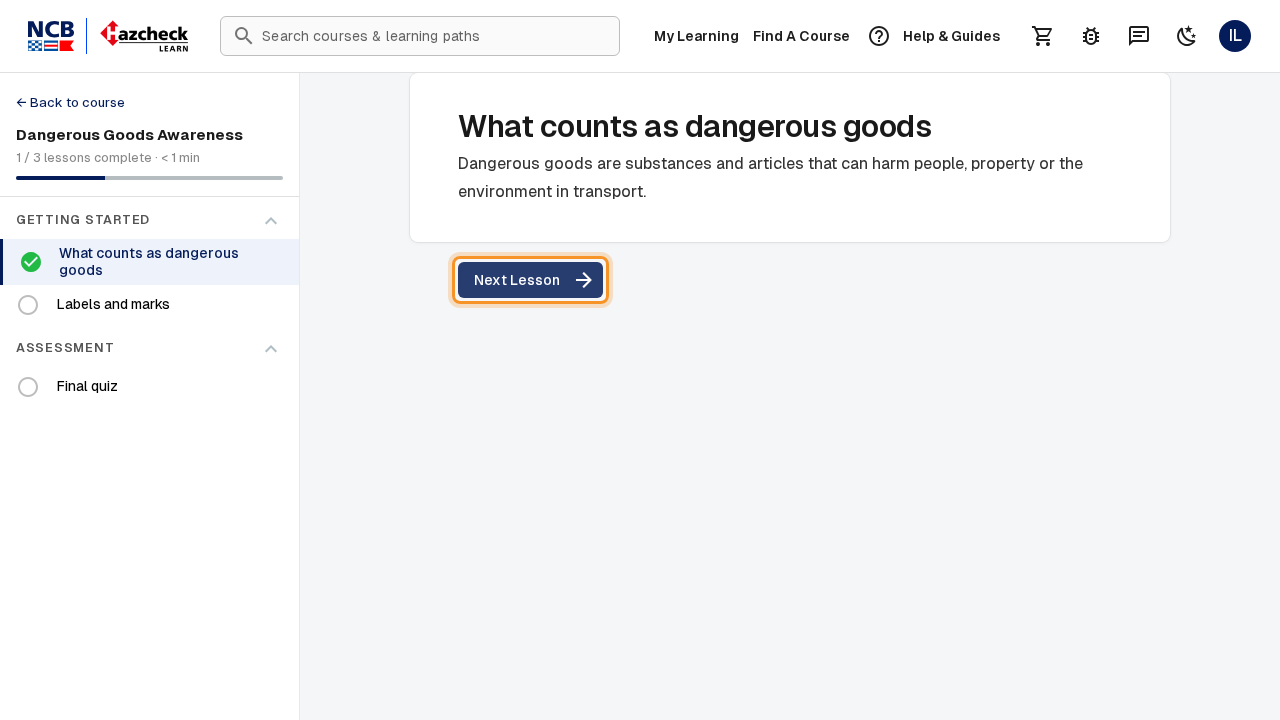
Step 4: Move on
A tick appears beside the finished lesson. Select Next Lesson to carry on.
-
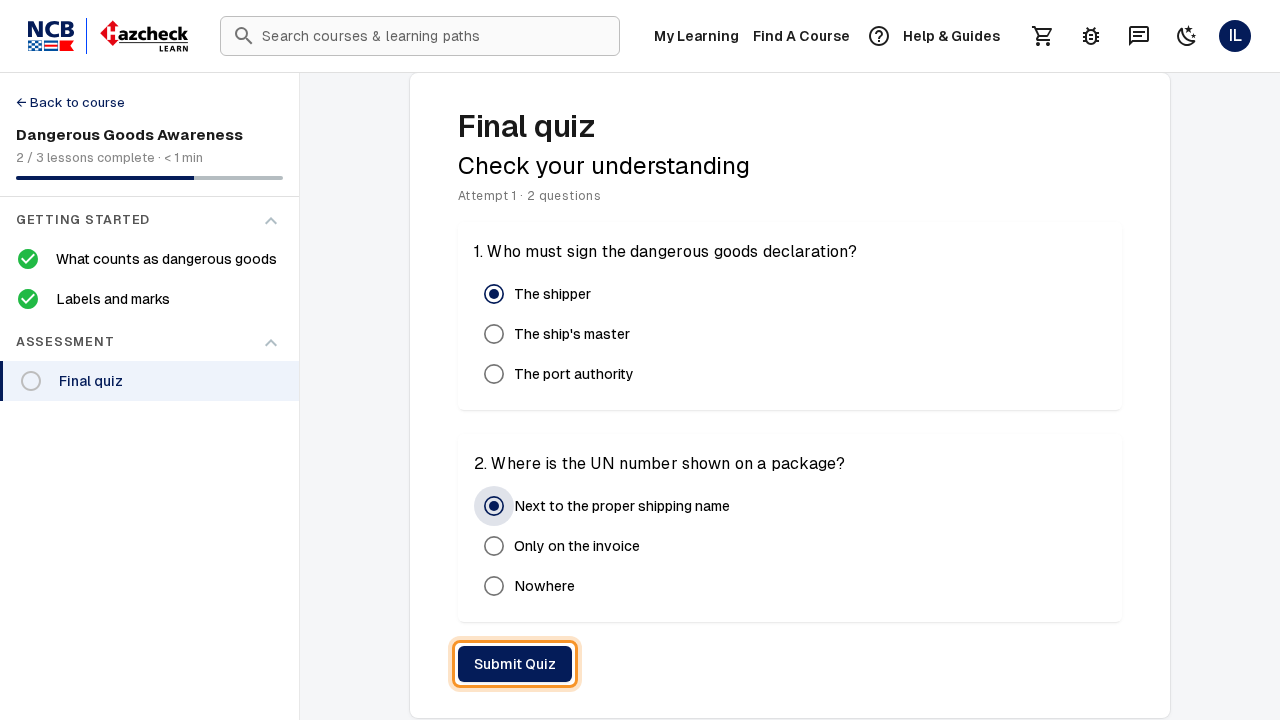
Step 5: Take the quiz
Answer every question, then select Submit Quiz.
-
Step 6: See your result
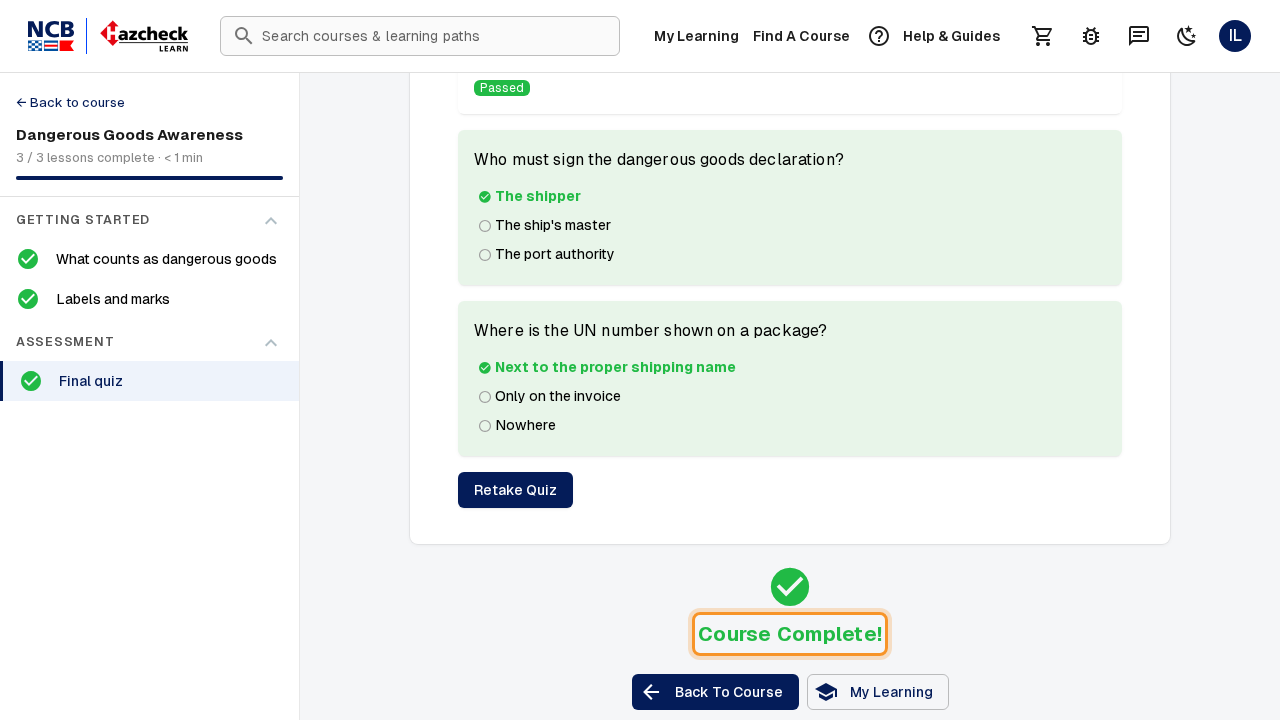
Your score appears straight away, with the right answers marked. Pass the quiz and the course is complete.
-
Step 7: Download your certificate
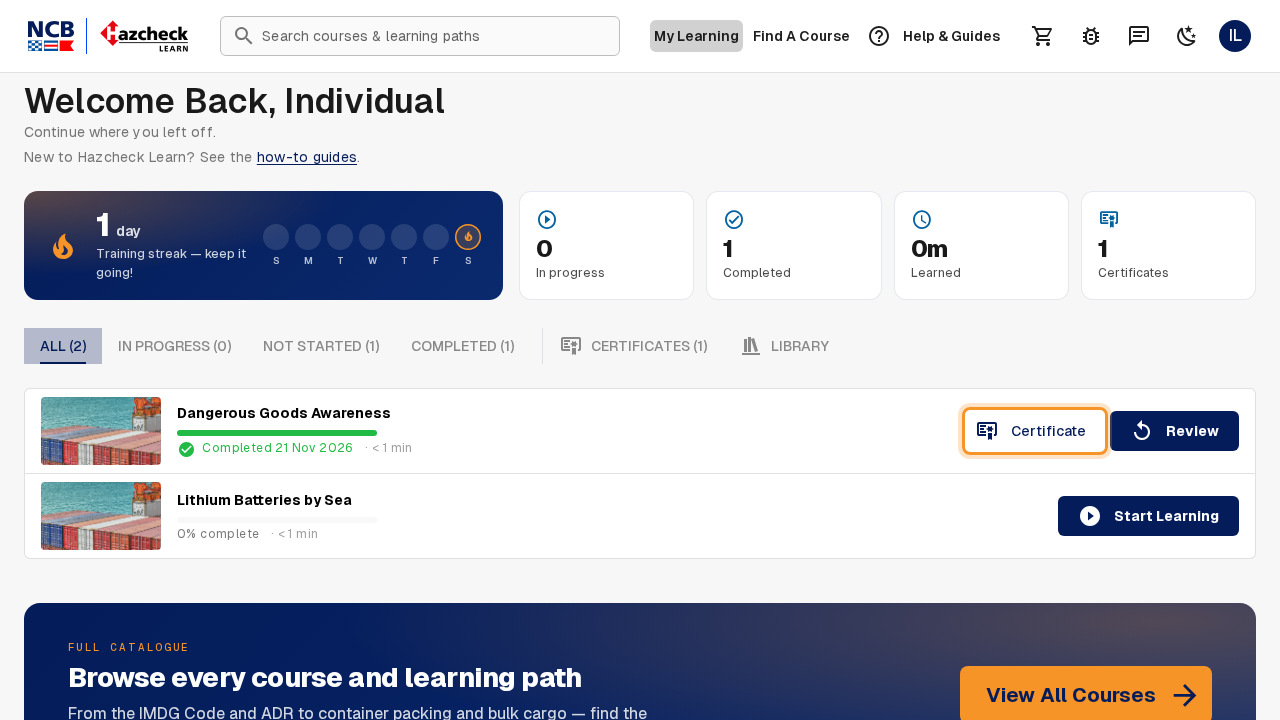
Back in My Learning the course shows as completed. Select Certificate to download it as a PDF.
-
Step 8: See all your certificates
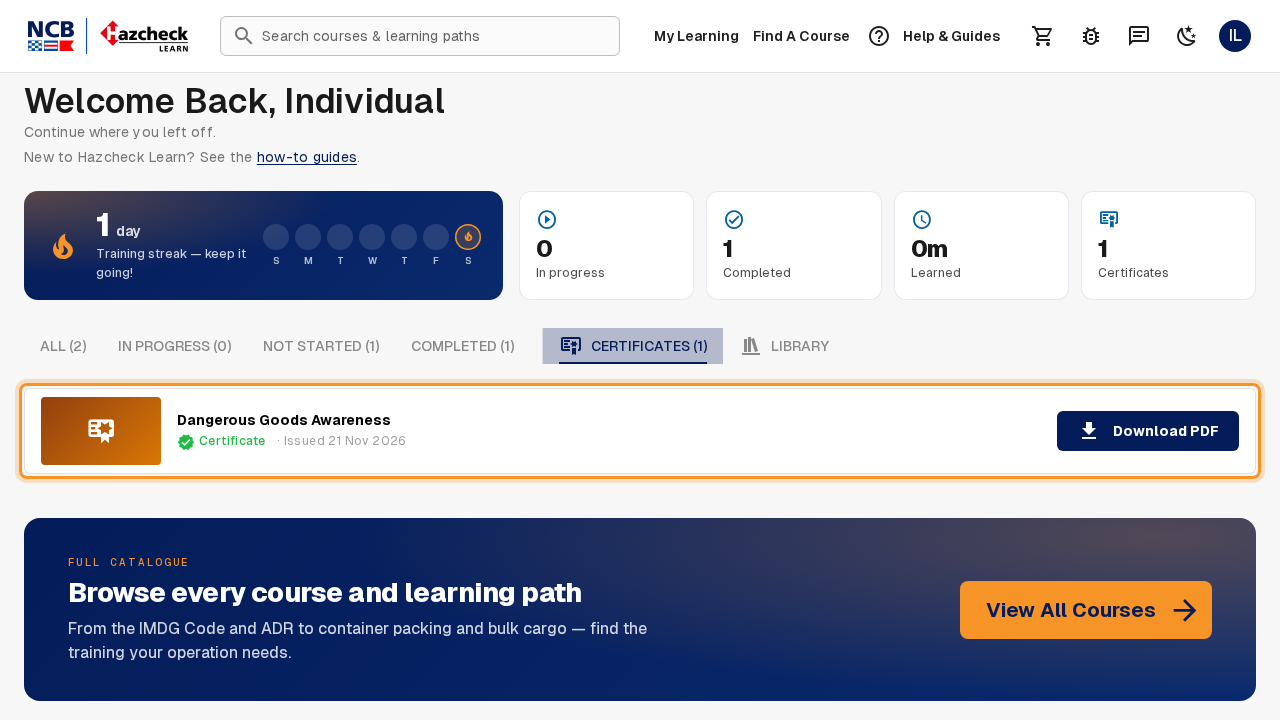
The Certificates tab on My Learning lists every certificate you have earned, with the date it was issued. Select Download PDF to save one.
-
Step 9: All your certificates
My Certificates, in your account menu, keeps every certificate you have earned.