


Use your Library
The Library on My Learning keeps the documents from your courses, and the publications you can read, buy or ask for.
-
Step 1: Open the Library
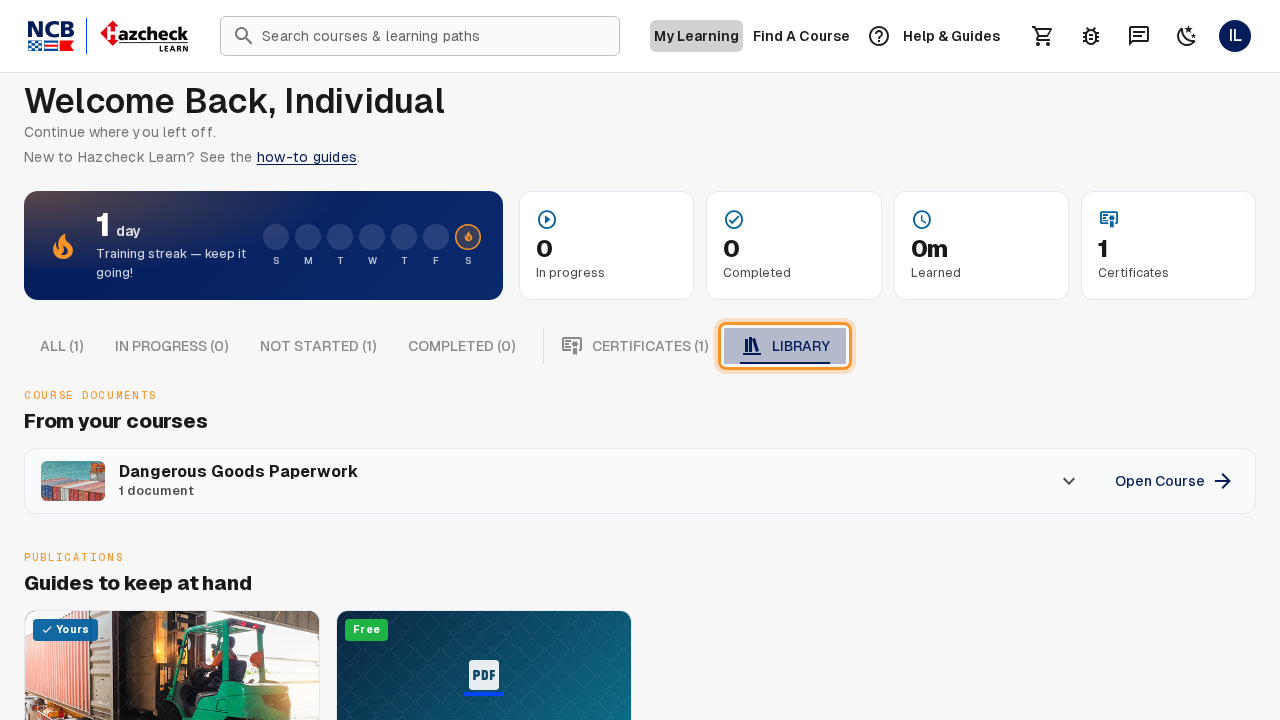
Open My Learning and select the Library tab, beside your course filters.
-
Step 2: Your course documents
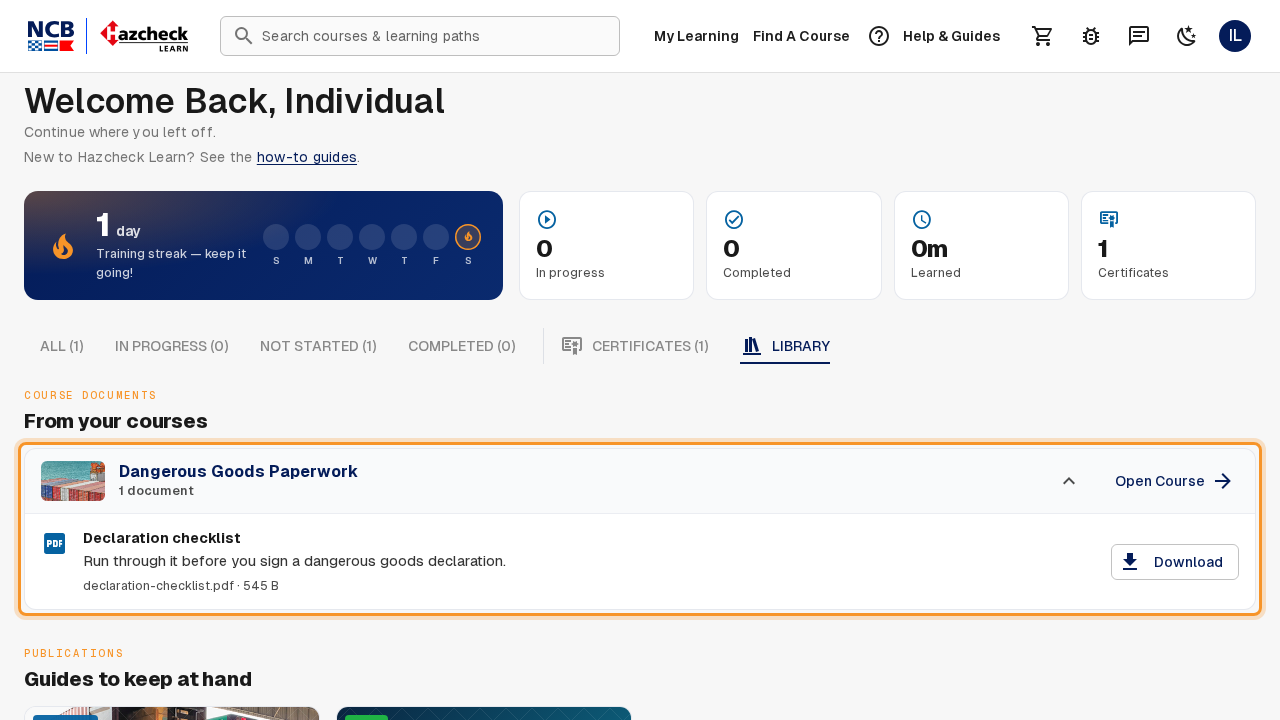
Documents from your courses are listed under the course they belong to, with what each one is for. Select a course's title to show or hide its documents, and Download to save a copy.
-
Step 3: Your publications
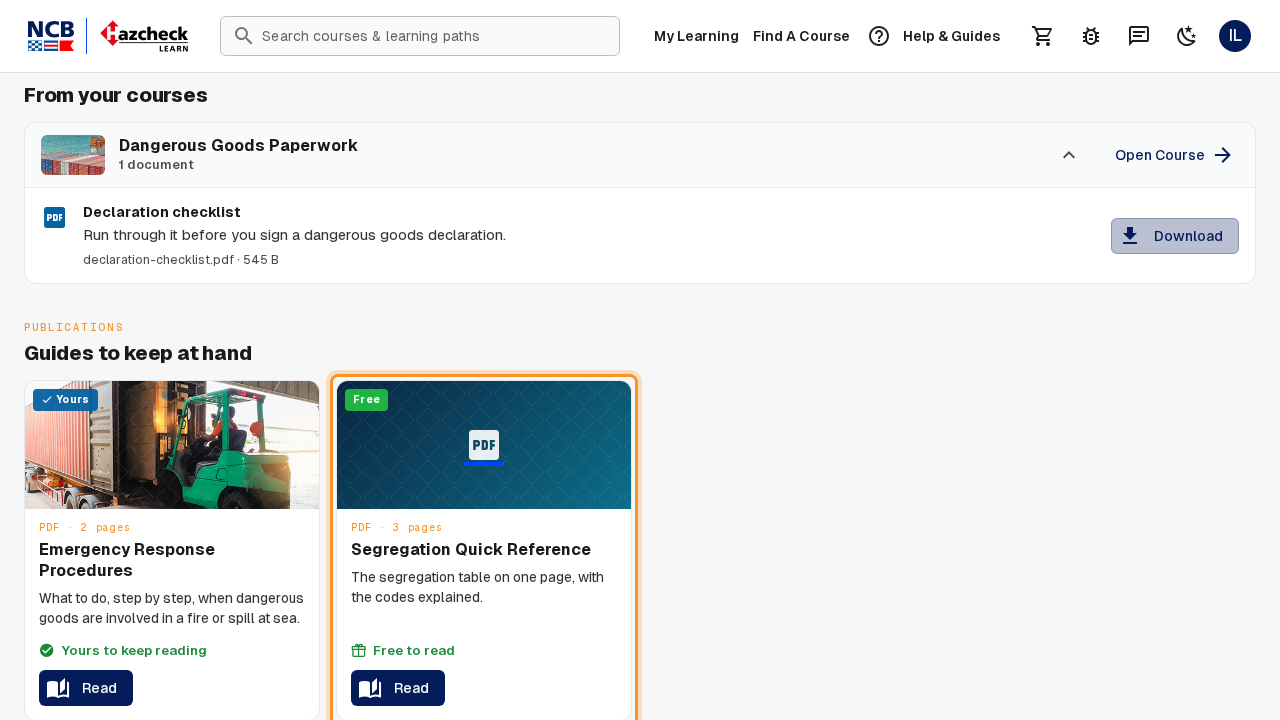
Publications you can read have a Read button. Free ones are free to read; others say whether to buy them or, if your organisation provides them, to ask your administrator.
-
Step 4: Read it
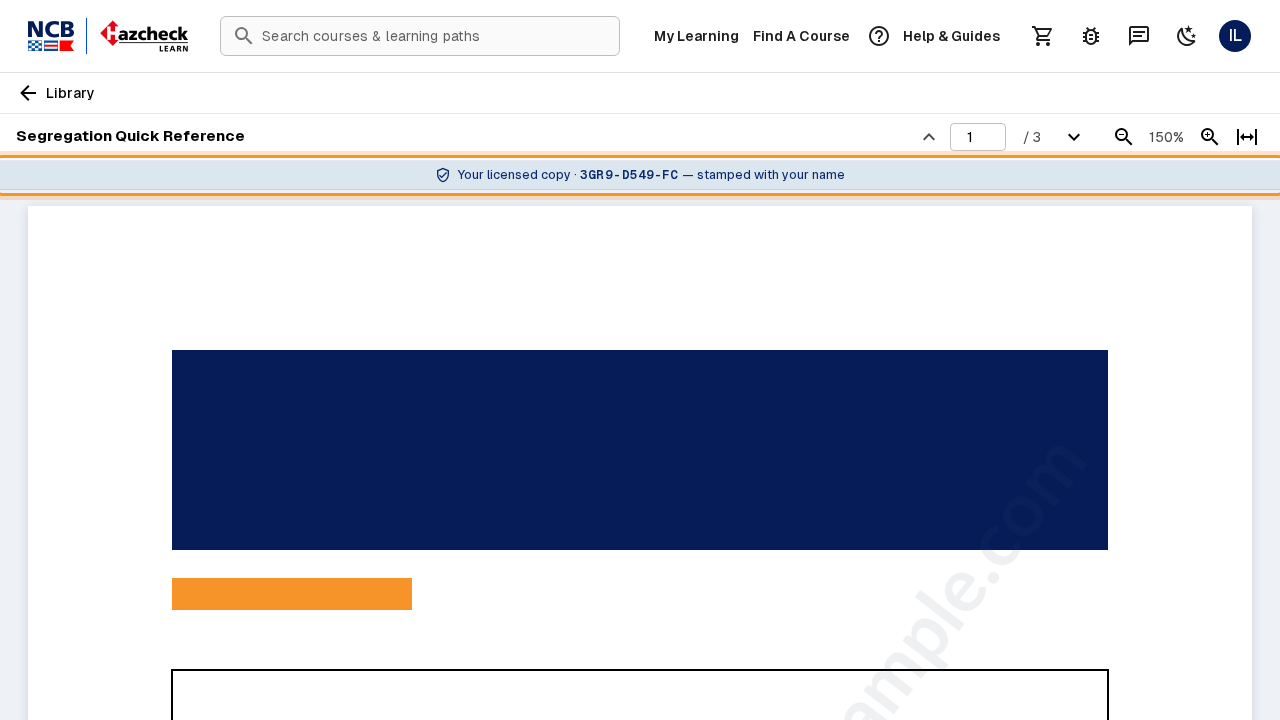
The publication opens in your browser. Even a free one is your own copy, stamped with your name and a copy code.