


Invite someone by email
Give a seat to someone who doesn't have an account yet. The seat is kept for them and becomes theirs when they first sign in.
-
Step 1: Type their email address
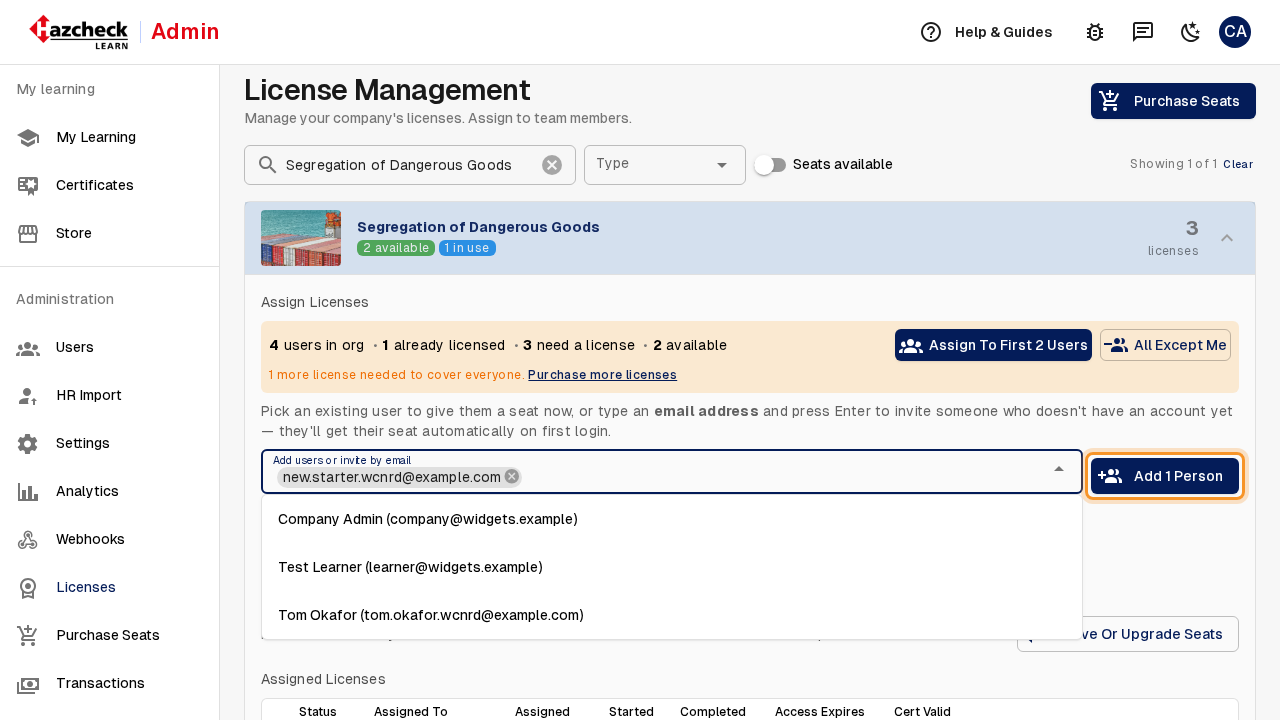
In Licenses, open the course. Type the person's email address into Add users or invite by email and press Enter, then select Add 1 person.
-
Step 2: Check the invite
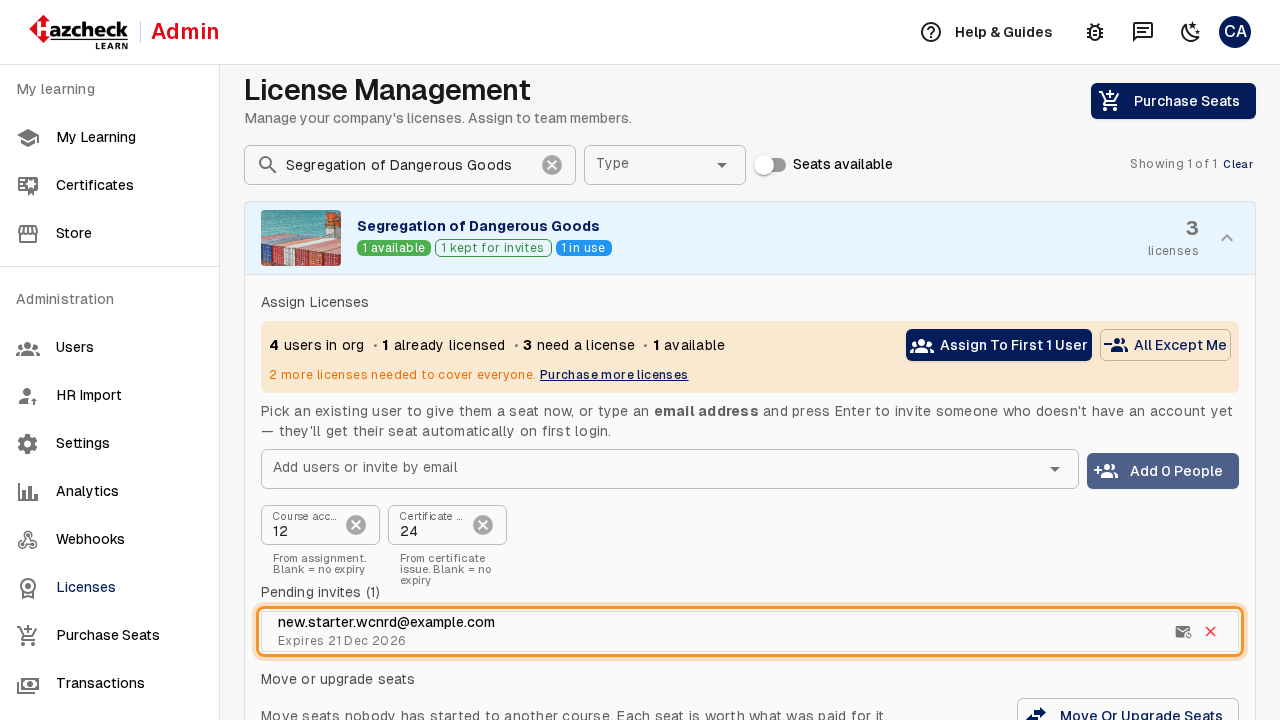
The invite is listed under Pending invites until they sign in. It lasts 30 days, and you can send it again from here.
-
Step 3: Cancel an invite
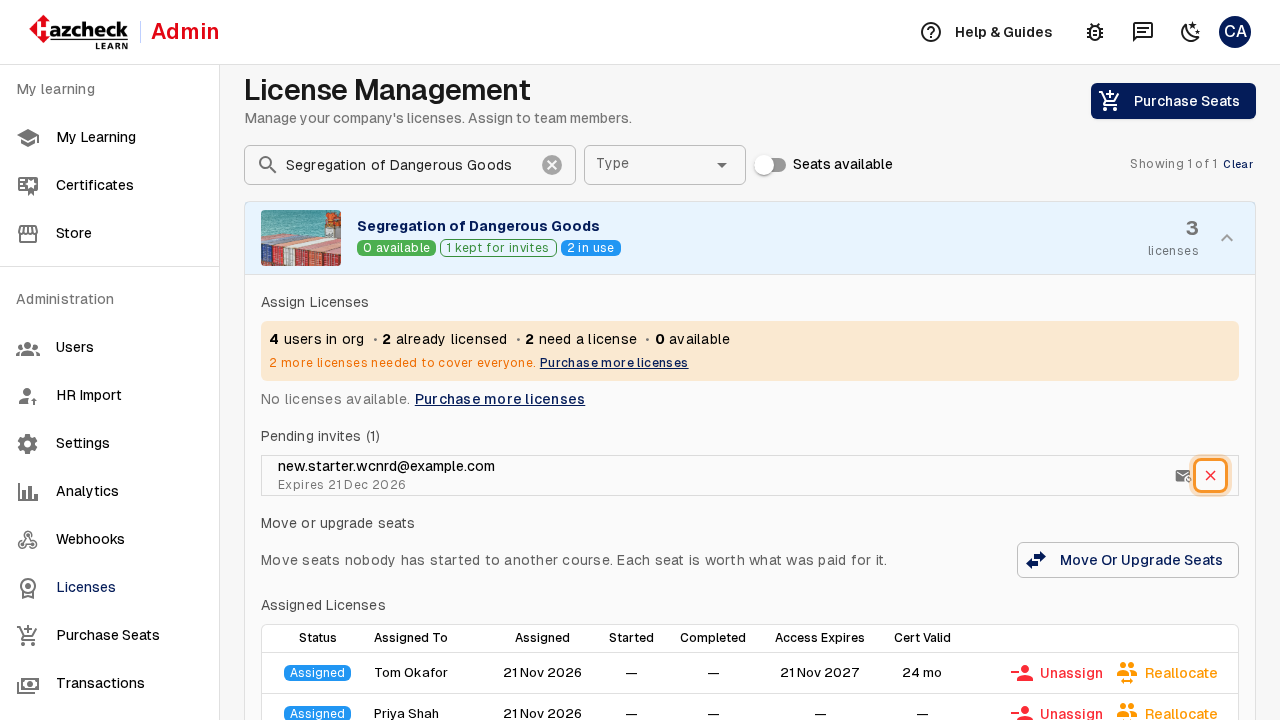
To take the seat back before they sign in, select the cross beside the invite.